
MacOSX Snow Leopard on Packard Bell iMax C2600 / Aspire Revo R3600
mercredi 3 février 2010, par , 40815 Vues
Noter cet article
I have bought a Packard Bell iMax C2600 nettop at bargain prices. It includes an Atom processor, Nvidia ION chipset, 2 Go ram and 160 Go hard disk. As usual I tried my favorite hobby which is installing MacOSX on this computer.
Context and hardware
About Aspire Revo 3600 / Packard Bell iMax C2600
The Packard Bell Imax C2600 is the same as the Acer Aspire Revo 3600 (Packard Bell is an european brand from Acer, as Gateway is one for the US).
It was available for a bargain price of 149 euros in a french store (Surcouf), but Acer policy of refunding Vista Premium for 40 euros (shipping is paid by Acer) means it costs only 109 euros, really a rock bottom price.
The computer is also open to upgrade to Windows Seven Premium for the low price of 15 euros from Acer too (this company is bound to go broke one of these days by being so generous 8-) ).
Its main specifications are the following :
– Atom N230 at 1.6 Ghz : includes 64 bit, Hyperthreading and execute disable bit but is single core unlike its bigger brother Aspire Revo R3610 dual core Atom N330
– 2 Go ram
– 160 Go hard disk
– Nvidia IO chipset
– OS Vista Premium
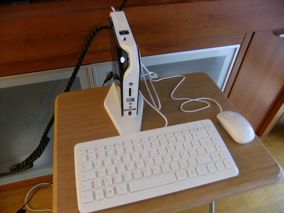
Aspire Revo 3600 : supplied with keyboard and logitech optical mouse
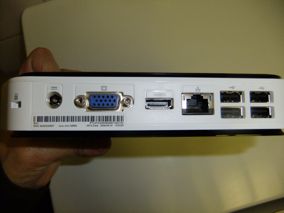
Left to right : Power supply, VGA, HDMI, Ethernet, 4 USB
In addition : two USB (total 6 USB) on the top, and SD Reader, eSATA connector, headphones and microphone jacks on front - the connections are very complete for such a bargain computer as only thing missing would be bluetooth.
So I sent my new purchase to Acer for my Vista refund then set out to install MacOSX on it when I received it back.
About MacOSX installation
Installation of MacOSX on the iMax C2600 is challenging, as with most of the ATOM based computers because of the BIOS which crashes most installation disks (Tiger, Leopard, Snow Leopard) following faulty DSDT tables. That was the same on my EEEPC 900HA.
From what I found in Insanely Mac ION thread most often the path is to flash a modified bios, or to remove the hard drive physically from the computer and install from another computer.
I couldn’t find the modified bios for the iMax C2600 or Acer Aspire Revo R3600 - and I don’t like the idea of depending on another computer to install one - so the methods presented here don’t take either approach and a standalone Revo with an external DVD reader is all you need.
Moreover, my favorite distribution is iAtkos 1.0ir2 as it is extremely stable (months using it on several laptops with no kernel panic ever - or booting / shutdown problems) which is based on Leopard 10.5.1. However the Nvidia MCP790 ION chipset is only supported since 10.5.6, so that’s why I picked Snow Leopard this time.
Preparation
Bios Settings
Basically keep default settings ie :
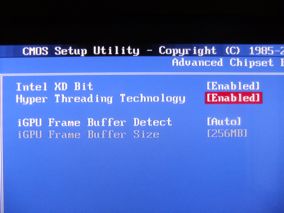
You can keep Hyperthreading Enabled

And SATA mode AHCI, enable Legacy USB support
Change Wifi card
You save a lot of trouble by replacing the Wifi card with a Broadcom Mini PCI BCM94311 card which is often also labelled as Dell Mini 1390 wireless card. It must be around 10 $ on Ebay.
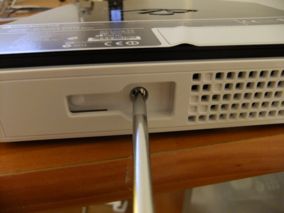
Just one screw
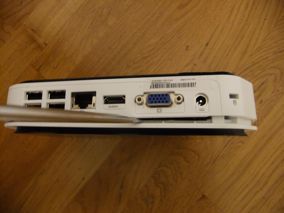
Carefully pry open the clips - note : don’t damage stupidly the serial number sticker (warranty) as I did, it doesn’t prevent opening as it is on the other side
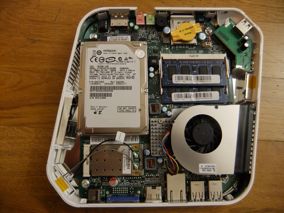
Wifi card is on the lower left
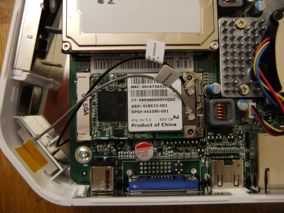
Replaced by the classic Broadcom BCM94311 Mini-PCI card
It’s already done ! If you have trouble see the Aspire Revo disassembly video here
The easy method : Empire EFI and standard Snow Leopard DVD
Required
– Empire EFI 1085
– Snow Leopard standard DVD
Main steps
1) Boot : Boot on Empire EFI 1085, replace with standard Snow Leopard DVD
Empire EFI video is messed up if you have more than 2 partitions on your hard drive - and won’t work. Delete extras partitions if needed.
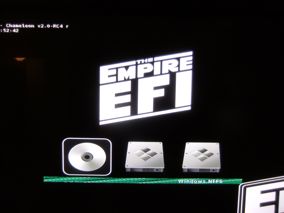
With 2 partitions you can already notice some garbage
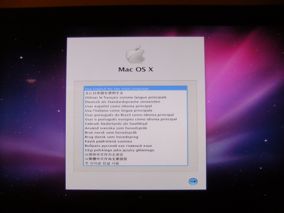
Original Snow Leopard DVD boots up, awesome 8-)
2) Hard disk partition : Launch disk utility, erase hard disk and create an GUID hard drive with one partition. Format the Macintosh HD under HFS.
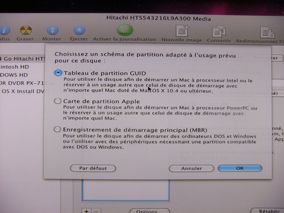
GUID partition table necessary with original Snow Leopard DVD - that means you lose everything on the hard drive
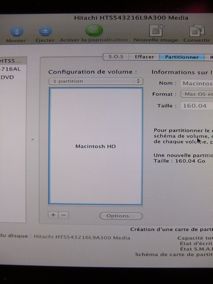
One partition, Macintosh HFS file system
That also means no XP, Vista or Seven installation on the same hard drive
3) Install Snow Leopard : on the new Macintosh partition
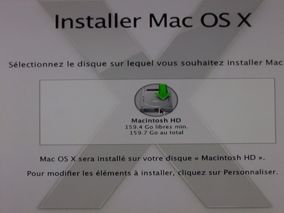
Target drive recognized
It takes up to one hour, be patient.
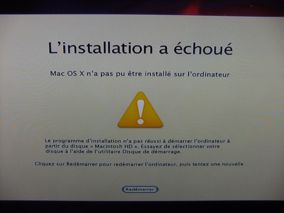
Installation is ok but fails on reboot - this is OK
4) MacOSX hard disk boot : Boot with Empire EFI, choose the new Snow Leopard partition installed
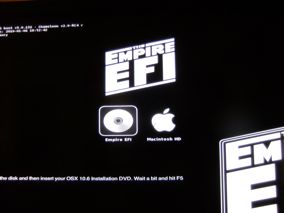
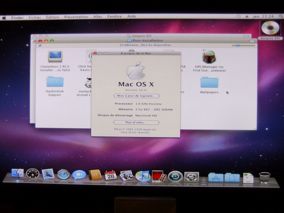
That’s it, you have Macintosh Snow Leopard 10.6 installed but it still needs the boot CD.
Open Empire EFI CD, folder Post-Install and launch MyHack.
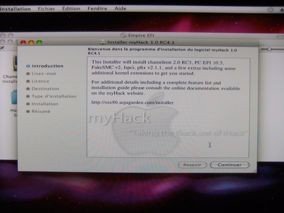
MyHack launched
Choose the following settings under customize (and disable others) :
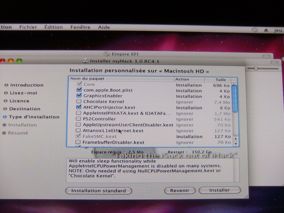
Com.apple.boot.plist - GraphicsEnabler - AHCIPortInjector
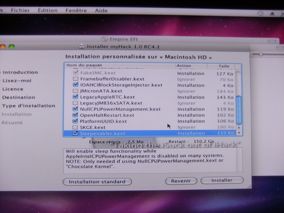
IOAHCIBlockStorageInjector - LegacyAppleRTC - NullCPUPowerManagement - OpenHaltRestart - PlatformUUID - SleepEnabler
and install. It will take a very long time to finish all the installation including the scripts and so on. If there is a problem in the end, just launch Chameleon RC3 install on Empire EFI CD.
Reboot on hard disk this time, you should be able to boot to MacOSX without CD or DVD.
5) Additional drivers : Sound
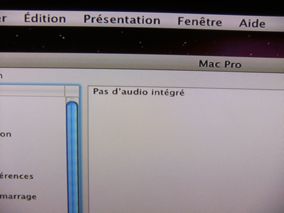
No sound yet
Put the following kext drivers in the package in Extra/Extensions :
– AsusK50IN.kext, HDEnabler.kext for sound

You will need to authentify.
Then download and launch kextutility to update Snow Leopard kext caches (it takes a while).
If you have a french PC keyboard, use the following customized keylayout
by putting it in Users/Library/Keyboard Layouts and choosing the keyboard map under Language and Texts / Input Methods.
Note : PC keyboard have a slighty different layout as Mac keyboards - so you need a customized keylayout if you want 100% correct layout
Results
Main results are the following :
| Hardware | Works | Don’t work | Comments |
| Video native resolutions | X | On both HDMI and VGA | |
| QE, Core Image, Open GL | X | X | Seems to work, except for OpenGL (black screen) |
| Sound | X | But no sound output under HDMI | |
| USB | X | Including hot plugging | |
| Ethernet | X | Including hot plugging | |
| Wifi | X | Don’t work, for best MacOSX experience it is easier to replace it with a Broadcomm Mini-PCI card | |
| Sleep | X | ? | After a few reboots works OK |
| Deep sleep | X | First step works but reboot don’t. I think it is a chameleon / bios / dsdt.aml issue on memory recognition | |
| Stability | ? | ? | See below |
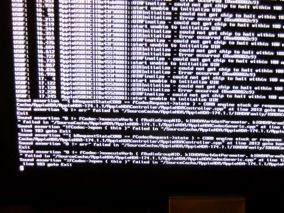
Boot crashes ...
Stability is very good (never had a crash under Snow Leopard, or a shutdown problem) BUT the initial boot would crash one time out of three, and would take sometimes a long time. Not entirely clear why - root device or High definition audio.
The installation itself seems somewhat picky, I crashed it once without being able to recover by messing with the boot files.
The optimal method : customized Snow Leopard MBR DVD
This optimal method gives the following benefits over the previous one :
– dual boot with Windows Seven or other operating system thanks to MBR
– OpenGL compatibility for games (Warcraft III for example)
– seems more stable especially on the boot process
Required
– Snow Leopard customized MBR DVD
– Snow Leopard Boot 132 MBR CD
– Empire EFI 1085
Optional
– Snow Leopard standard DVD (for missing items on Snow Leopard customized MBR install)
Bios settings
Main Steps
1) Boot : Boot on Snow Leopard Boot 132 MBR CD, replace with Snow Leopard customized MBR DVD
Note : Snow Leopard customized MBR DVD would only boot with the supplied Boot 132 CD on my Aspire Revo 3600

Lost lots of time today reinstalling on my 900HA EEE PC. To scan the drives when you replace the Snow Leopard Boot 132 MBR CD with Snow Leopard customized MBR DVD you must press the F10 key (F5 froze my EEEPC). And if you don’t have an USB mouse (most integrated laptop trackpads are PS2 ...) booting on the DVD will also crash the PC.
2) Hard disk partition : Launch disk utility, erase hard disk and create an MBR hard drive with two partitions (one for Windows 7 and one for Macintosh). Format the Macintosh HD under HFS.
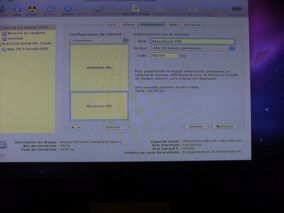
Two partitions, one for Windows 7 and one for Snow Leopard
3) Install Snow Leopard : on the new Macintosh partition
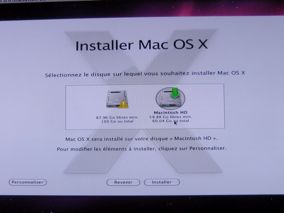
New Macintosh HD target drive
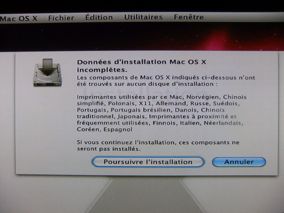
This custom DVD doesn’t include everything - that’s OK, just use your standard Snow Leopard DVD after if you miss something
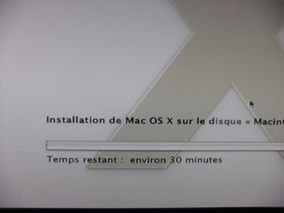
It says 30 min but on this hackintosh it’s more one hour
Installation is ok but fails on reboot - this is OK
4) MacOSX hard disk boot : Boot with Empire EFI (or Snow Leopard Boot 132 MBR CD), choose the new Snow Leopard partition installed
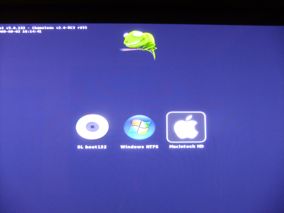
Boot 132 shows new Snow Leopard install
Willkommen video
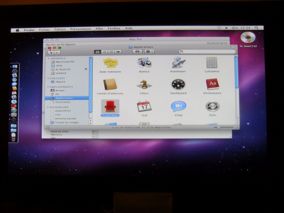
That’s it, you have Macintosh Snow Leopard installed but it still needs the boot CD.
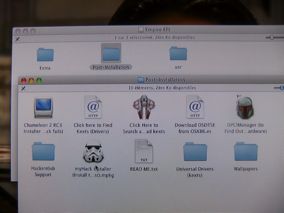
Open Empire EFI CD, folder Post-Install and launch MyHack
Choose the following settings under customize (and disable others) :
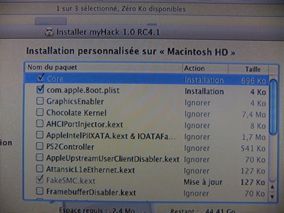
Com.apple.boot.plist
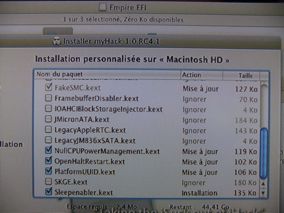
NullCPUPowerManagement - OpenHaltRestart - PlatformUUID - SleepEnabler
and install. It will take a very long time to finish all the installation including the scripts and so on. If there is a problem in the end, just launch Chameleon RC3 install on Empire EFI CD.
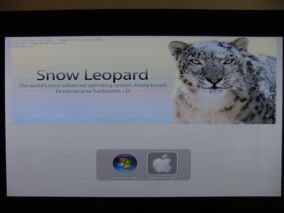
Snow Leopard dual boot with Windows Seven
Reboot on hard disk this time, you should be able to boot to MacOSX without CD or DVD.
5) Additional drivers : Sound and video
Put the kext drivers in the package in Extra/Extensions
The package includes
– AsusK50IN.kext, HDEnabler.kext for sound
– NVEnabler 64.kext for video including OpenGL
You will need to authentify.
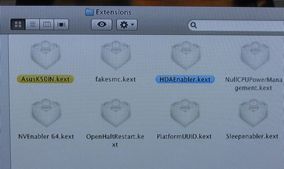
Not many Extras/Extensions - including MyHack ones
Then download and launch kextutility to update Snow Leopard kext caches (it takes a while).
If you have a french PC keyboard, use the following customized keylayout
by putting it in Users/Library/Keyboard Layouts and choosing the keyboard map under Language and Texts / Input Methods.
Note : PC keyboard have a slighty different layout as Mac keyboards - so you need a customized keylayout if you want 100% correct layout
If you need additional packages, insert your original Snow Leopard DVD and launch additional packages (for example : Rosetta, X11, Quicktime 7 and additional languages)
Hibernation fix
Just install the following specific Chameleon RC5 package with memory configuration recognition :
it will display an error but it should work OK, now if you hibernate (or deep sleep), your state will be restored back correctly.
Results
Main results are the following :
| Hardware | Works | Don’t work | Comments |
| Video native resolutions | X | On both HDMI and VGA | |
| QE, Core Image, Open GL | X | Seems to work, but still have trouble with 720p AVI under VLC | |
| Sound | X | But no sound output under HDMI | |
| USB | X | Including hot plugging | |
| Ethernet | X | Including hot plugging | |
| Wifi | X | Don’t work, for best MacOSX experience it is easier to replace it with a Broadcomm Mini-PCI card | |
| eSATA port
|
X | Works OK (tested with external Blu-Ray recorder) | |
| SD reader | X | ||
| Sleep | X | ||
| Deep sleep
|
X | Works OK with hibernate fix | |
| Stability | ? | ? | See below |
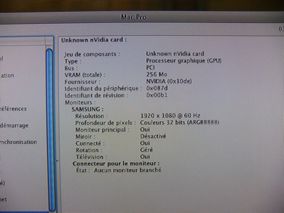
Unrecognized NVIDIA graphics card - but it’s not a problem
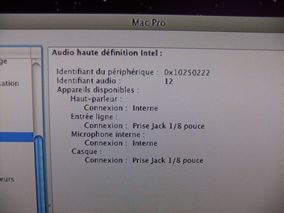
High Definition audio with several input and outputs
As you can see it is a very good results. Almost everything works fine after you change the Wifi card for a broadcom :
– HDMI sound output doesn’t, this is not surprising due to HDCP. It is not that much of a problem as you can use headphone jack output with VGA, or with HDMI if your TV allows it.
It seems sound over HDMI is not supported under OSX so this is unlikely to be fixed soon
– Deep sleep doesn’t work, I think it is very close - but anyway deep sleep is not essential on a nettop which is unlike a laptop and has no battery
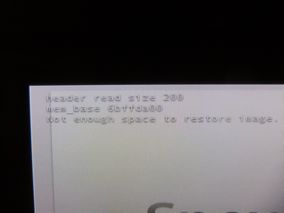
Deep sleep crash : not enough memory
Deep sleep works now with hibernation fix - see above
Stability is very good (never had a crash under Snow Leopard, or a shutdown problem) BUT one time out of 4 the initial boot would crash. Not entirely clear why - root device or High definition audio.
Without that issue, it would almost be perfect.
Conclusion
A Snow Leopard Mac mini for 109 euros (after Vista refund) how can you go wrong ?
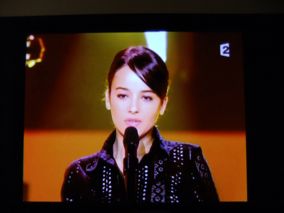
Alizee Video OK but this is not high definition
It is almost perfect, a pity that most 720P videos are choppy under MacOSX on my iMax.
It appears only Quicktime X uses hardware acceleration - VLC use hardware acceleration for displaying (Open GL) but not for decoding. It is true that Quicktime native movies (1080P Apple trailers) are almost fluid at 720P display resolution and are far more choppy under VLC.
One user on InsanelyMac forum says that quicktime acceleration works only if you don’t install Perian, in my case I don’t see any difference in speed when I disable Perian.
Useful links
Hardware
Blogeee iMax C2600 thread In french - 149 euros less 40 euros from Vista refund at Surcouf store, that is only 109 euros !
Aspire Revo disassembly So simple you don’t need a video I guess
Software
Empire EFI I used version 1.085
Custom Mac OSX Snow Leopard MBR DVD Torrent file including both install DVD and Boot 132 CD - Only part of original Snow Leopard DVD (French and English languages)
Custom Boot 132 Snow Leopard MBR CD
Snow Leopard video and sound drivers
French PC keyboard layout for Packard Bell iMax C2600
Specific Chameleon RC5 package with memory configuration recognition
Insanelymac Kextutility thread Necessary to update Snow Leopard drivers
InfiniteMac thread on ALC662 sound driver
Axionic Labs Snow Leopard Deep Sleep Widget Deep Sleep don’t work on my hackintosh - but this helps the testing
Information
How to detect Quartz Extreme and Core Image under Snow Leopard
Snow Leopard OpenCL benches Haven’t tried them yet
22 Messages
Un message, un commentaire ?
Rubriques

Dans la même rubrique
- Fuji Real 3D W3 Camera Test
- Archos 5 IT Test
- Archos 7 Home Tablet Test
- MacOSX Snow Leopard on Packard Bell iMax C2600 / Aspire Revo R3600
- Nokia N900 versus iPhone 3G quick test
- Windows Seven on an 2005 AMD Sempron 3000+
- From Nokia E90 to Apple iPhone 3G 16 Go
- Fuji F70EXR Review
- Yet another MacOSX EEEPC installation
- Fuji Finepix F200EXR Review: first impressions
